
List of the regular crew, and all the guests you’ve brought onboard your boat. This is a good place to record guest’s special diets, their ability to swim, and general experience aboard a boat.
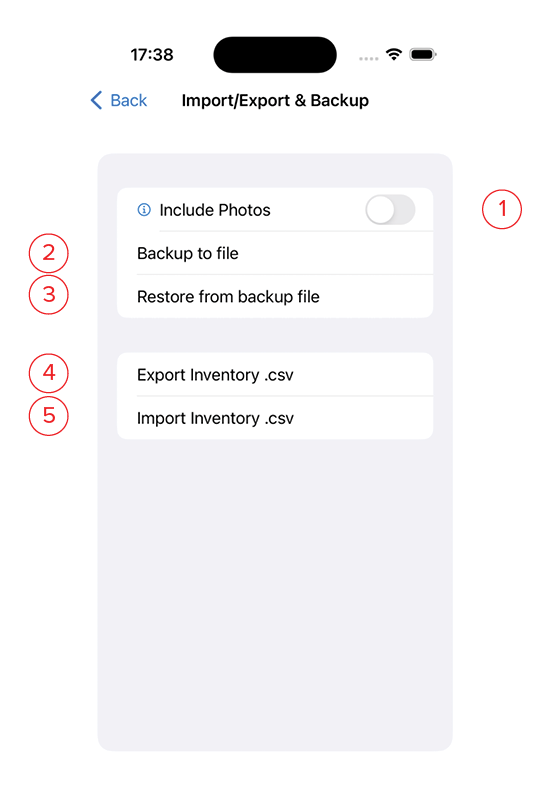
- Flipping this switch will include all photos with the backup information. Note that this is experimental at this time, and is not recommended for backups containing more than 50 photos. Including photos increases the backup file size by nearly 1000 times (20kB file with a dozen photos is nearly 20MB). If using this feature it may take an extra amount of time to export and import. If you have problems while exporting a file with photos, try again with the feature turned off.
- Backup to file sends all data to a .json file. When you click on this button you will be asked for a location to store the backup file. You may choose a location on your device, in iCloud storage, or any other cloud storage option that you have linked in the Files app. You may also email the file (depending on size) to another user for synching data between devices.
- Restore from backup file. Clicking this button will ask if you want to Merge the incoming data or overwrite the existing data. The safe route here is to merge unless you know that you want to erase the current entries and replace them with those from the file. In Merge mode, only new entries are imported, duplicates are not made.
- Export Inventory.csv will write a .csv file including all of the items in your inventory. If you have an existing spreadsheet of boat inventory, this is the first step in importing it into the app. Clicking this button will place a .csv file with today’s date on your device. To access this file use the Files app and click browse -> On My Phone (iPad) -> Captain’s Log. You will find a file there with today’s date.
- Import Inventory .csv will ask you to select the .csv file that has the data you want to import. If bringing in data from a spreadsheet or another app, see the special instructions on Creating a CSV File.